Smartphones are packed with features that rarely get the attention they deserve. Some of them sound interesting on paper but end up feeling unnecessary in everyday life. That’s exactly what I thought about Google’s Quick Tap feature on Pixel phones.
For a long time, I assumed it was just another hidden gesture that would be unreliable or difficult to use consistently. After finally giving it a chance, I realized I had been overlooking one of the most practical shortcuts available on my Pixel.
A Faster Way to Turn On the Flashlight
Like many people, I use my phone’s flashlight several times throughout the day. Whether I’m walking through a dark hallway, searching for something under a desk, or trying not to wake anyone at night, it’s a feature I rely on regularly.
Previously, turning on the flashlight meant unlocking my phone, opening Quick Settings, and tapping the flashlight icon. It’s a simple process, but repeating those same steps several times a day quickly becomes inconvenient.
That’s where Quick Tap changes the experience.
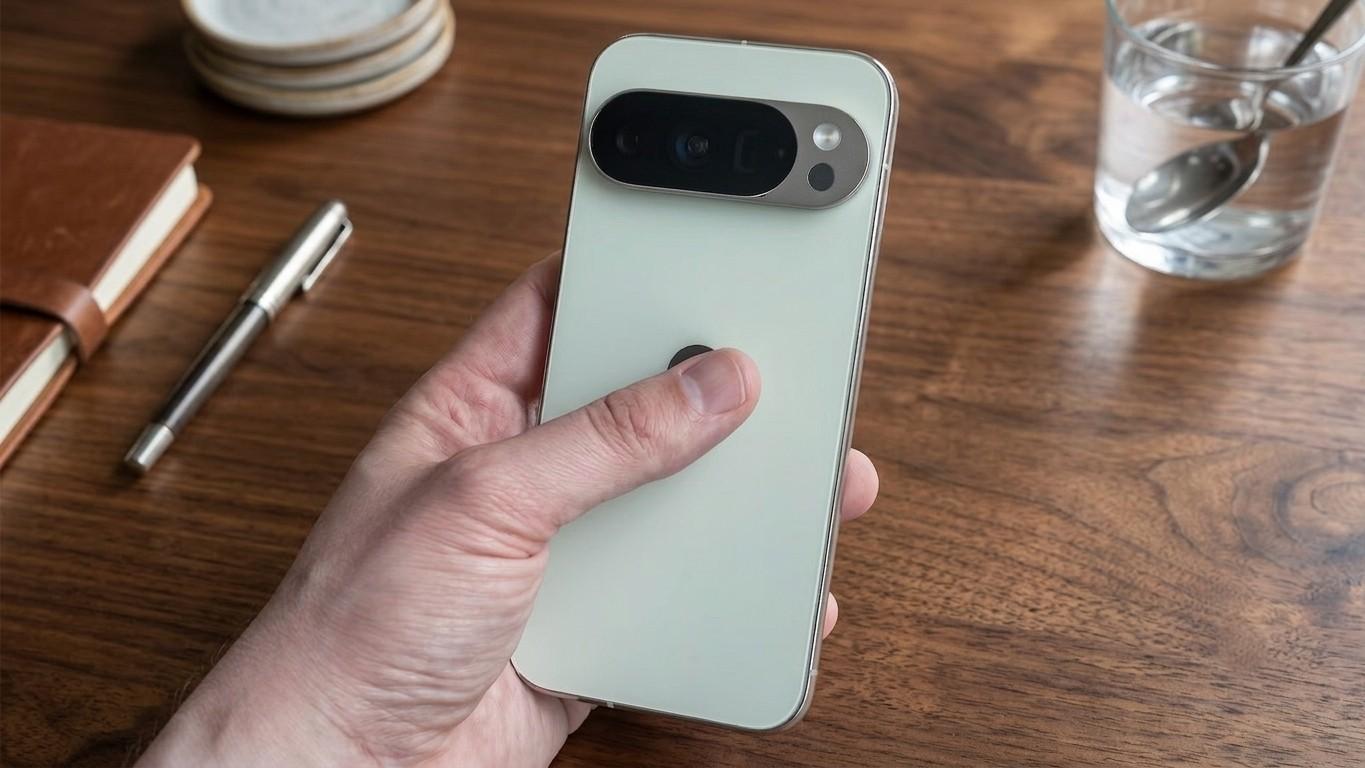
Instead of navigating through menus, I can simply tap the back of my Pixel twice, and the flashlight switches on instantly. Another double tap turns it off just as quickly.
Setting Up Quick Tap Takes Less Than a Minute
One of the best things about this feature is how easy it is to enable.
Here’s how to turn it on:
- Open the Settings app.
- Tap System.
- Select Gestures.
- Open Quick Tap.
- Enable the feature.
- Choose Toggle Flashlight as the assigned action.
Once configured, the shortcut is ready to use immediately.
It Feels Surprisingly Natural
At first, I kept forgetting the feature existed.
Years of using the traditional Quick Settings menu created a habit that wasn’t easy to break. During the first few days, I often caught myself swiping down before remembering I could simply double tap the back of the phone.
After about a week, however, the gesture became much more natural. Now I automatically reach for the back of the phone whenever I need a quick light.
Does It Always Work?
In my experience, Quick Tap performs well most of the time.
The only situation where responsiveness can vary is when using a thick protective case. Slim cases usually don’t interfere much, but bulkier cases may require a firmer double tap before the phone recognizes the gesture.
Even then, it’s still fast enough to be useful for everyday tasks.
Flashlight Isn’t the Only Option
Although flashlight is my favorite Quick Tap action, Google allows you to assign several different shortcuts.
Some of the available options include:
- Taking a screenshot
- Playing or pausing media
- Opening the digital assistant
- Viewing recent apps
- Launching a specific application
This flexibility means different users can customize the feature to match their own habits. Someone who frequently listens to music might prefer media controls, while others may want instant access to their camera or favorite productivity app.
Which Pixel Phones Support Quick Tap?
Quick Tap is available on Pixel 4a and newer compatible Pixel devices running supported versions of Android.
If you own a recent Pixel phone, there’s a good chance the feature is already built into your device—you simply need to enable it from the settings menu.
A Small Feature That Makes a Big Difference
Not every smartphone feature needs to be revolutionary.
Sometimes the most valuable improvements are the ones that eliminate a few unnecessary steps from everyday tasks. Quick Tap falls into that category.
It doesn’t completely change how you use your phone, but it makes common actions feel faster and more convenient.
Quick Tap is one of those hidden Pixel features that’s easy to overlook. On paper, it may seem like a minor convenience, but after using it regularly, it’s difficult to imagine going back to the old method.
If you’ve never tried it, spend a few minutes setting it up and use it for a week. You might discover that this simple gesture becomes one of the most useful shortcuts on your Pixel smartphone.