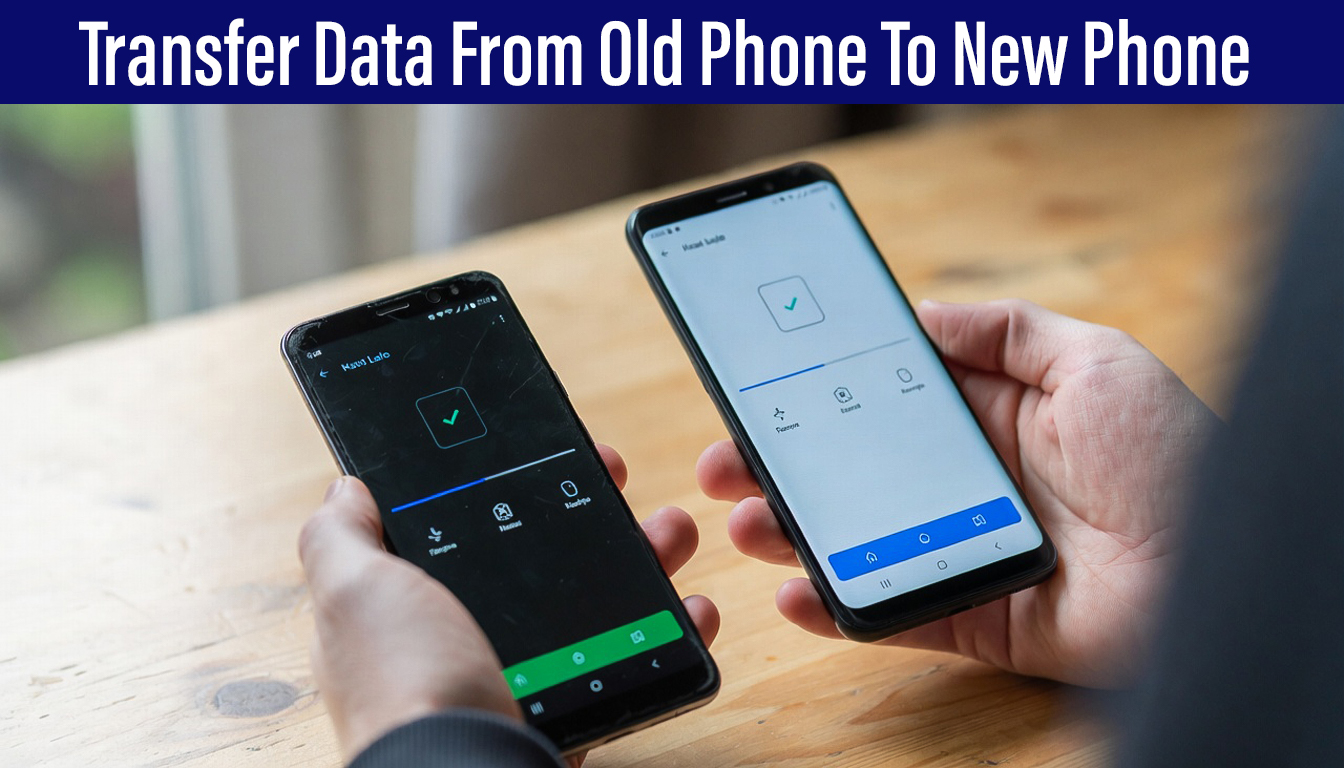
Getting a new smartphone is always exciting. Whether you are upgrading to a newer Android device or switching to an iPhone, the first thing most users worry about is losing their important data. Photos, contacts, messages, apps, and documents are all part of your digital life, and losing them during a phone upgrade can be frustrating.
Fortunately, modern smartphones make it much easier to transfer data from an old Android phone to a new Android device or even to an iPhone. With the help of cloud backups, built-in transfer tools, and a few simple steps, you can move your entire digital life safely to your new phone.
This guide explains the best and easiest ways to transfer data from old Android to new Android without losing anything.
Why Data Transfer Is Important When Switching Phones
Your smartphone contains much more than just files. It stores personal memories such as photos, important messages, work documents, and daily apps that you rely on every day.
When you switch to a new device, transferring your data ensures:
- Your contacts remain intact
- Photos and videos stay safe
- Apps and settings move to the new phone
- Messages and call history are preserved
A proper transfer process saves time and prevents the need to manually set up everything again.
Key Tips Before Starting the Data Transfer
Before you begin moving files from your old Android phone to a new device, there are a few important preparation steps that can help prevent problems during the process.
1. Create a Full Backup
Always start by backing up your phone. A backup protects your data in case something goes wrong during the transfer.
You can use services like:
- Google Drive backup
- Device backup settings
- Manufacturer cloud services
This step ensures that contacts, messages, and app data remain safe.
2. Charge Both Phones
Make sure both the old and new devices have enough battery power before starting the transfer process.
Experts recommend:
- At least 80% battery on both phones
- Or keep both devices plugged into power
This prevents interruptions that might corrupt or stop the transfer.
3. Connect to a Stable Wi-Fi Network
Many transfer methods use the internet to move data. A stable Wi-Fi connection helps ensure the transfer process runs smoothly without interruptions.
Preparation Checklist
| Preparation Step | Description | Importance |
|---|---|---|
| Backup Data | Save contacts, photos, messages, and apps | High |
| Charge Devices | Ensure both phones have enough battery | High |
| Connect to Wi-Fi | Stable internet improves transfer speed | Medium |
| Update Software | Install latest Android updates | High |
Completing these steps makes the migration process faster and safer.
Method 1: Transfer Data Using Google Backup
One of the easiest ways to transfer data from an old Android phone to a new one is by using Google Backup. Most Android devices already use a Google account, which automatically stores important information.
This method works for transferring:
Step 1: Enable Backup on Your Old Phone
First, open your phone’s Settings and navigate to the backup section.
From there:
- Tap Google Backup or Backup & Restore
- Turn on Backup to Google Drive
- Select the data you want to back up
Step 2: Select Data Categories
In the backup settings menu, you can choose which data you want to save.
Common backup options include:
- Contacts
- Photos and videos
- App data
- SMS messages
- Device settings
Selecting the correct categories ensures that everything important moves to your new device.
Step 3: Restore Data on Your New Phone
When setting up your new Android phone, sign in using the same Google account used on your old device.
During setup:
- Choose Restore from Backup
- Select the most recent backup
- Wait for the data to synchronize
Depending on the amount of data, this process may take several minutes.
What Google Backup Transfers
| Data Type | Included in Backup |
|---|---|
| Contacts | Yes |
| Photos & Videos | Yes (if Google Photos enabled) |
| App Data | Yes (supported apps only) |
| Device Settings | Yes |
| Messages | Yes |
| Some App Data | No (depends on the app) |
Not all apps support Google Backup, so some information might need manual transfer.
Method 2: Use Manufacturer Data Transfer Tools
Many smartphone brands provide built-in tools that make data transfer even easier.
These tools are optimized for their specific devices and often support wireless or cable transfers.
Samsung Smart Switch
Samsung users can transfer data using Smart Switch, which works with both Samsung and non-Samsung Android phones.
Transfer options include:
- Wireless transfer
- USB cable transfer
- Computer backup transfer
Smart Switch can move:
- Contacts
- Photos
- Messages
- Apps
- Settings
Google Pixel Quick Switch Adapter
Google Pixel devices include a Quick Switch Adapter that allows direct cable transfer between phones.
Steps include:
- Connect both devices using the adapter
- Follow the instructions on the screen
- Select the data you want to transfer
This method is usually faster than wireless transfers.
OnePlus Clone Phone App
OnePlus offers a dedicated application called Clone Phone.
This app allows users to:
- Transfer data wirelessly
- Move contacts and photos
- Migrate apps and messages
It works between OnePlus devices and other Android phones as well.
Xiaomi Mi Mover
Xiaomi smartphones include a tool called Mi Mover, which helps transfer data quickly.
Supported transfers include:
- Photos and videos
- Apps
- Contacts
- Messages
Users can choose either wireless or cable transfer.
Comparison of Transfer Tools
| Brand | Tool Name | Transfer Method |
|---|---|---|
| Samsung | Smart Switch | Wireless & Cable |
| Google Pixel | Quick Switch Adapter | Cable |
| OnePlus | Clone Phone | Wireless |
| Xiaomi | Mi Mover | Wireless & Cable |
These tools simplify the migration process and require minimal technical knowledge.
Method 3: Use Third-Party Data Transfer Apps
If built-in tools are not available, third-party apps can help transfer data between devices.
Popular apps include:
CLONEit
CLONEit allows users to transfer multiple types of data at once, including contacts, apps, and media files.
SHAREit
SHAREit is known for fast file transfers using Wi-Fi Direct, making it ideal for large files like videos.
Nearby Share
Nearby Share is a built-in Android feature that allows quick file sharing between nearby Android devices.
Method 4: Manual Transfer Using a Computer
If you prefer a manual method, you can transfer files using a computer.
Steps for Manual Transfer
- Connect the old phone to a computer using a USB cable
- Copy photos, videos, and documents to the computer
- Disconnect the old phone
- Connect the new phone
- Transfer the files from the computer to the new device
This method works well for:
- Photos
- Videos
- Documents
- Music files
However, it may not transfer apps or system settings.
Transferring Specific Data Types
Sometimes users only want to move certain data instead of everything.
Here are the best methods for specific file types.
| Data Type | Transfer Method | Recommended Tool |
|---|---|---|
| Contacts | Sync with Google account | Google Contacts |
| Photos & Videos | Cloud sync | Google Photos |
| WhatsApp Data | Backup & restore | WhatsApp Google Drive |
| App Data | Backup tools | App-specific backups |
Transfer Data From Old Android To New Android
Transferring data from an old Android to a new one is easy with the right steps. You can prepare your devices and use Google Backup or specific tools Transfer Data From Old Android To New Android. This ensures a smooth move to your new device.
If you prefer a simple and universal solution, you can also transfer files manually. Photos, videos, and documents can be copied to a computer from the old phone and then Transfer Data New Device. To do this, connect the old Android phone to a computer using a USB cable and copy the files into a folder.
After that, disconnect the old phone and connect the new one. Then move the files from the computer to the new phone. This method works well for media files and documents, although it may not transfer apps or system settings.
| Data Transfer |
|---|
| Transfer Data From Old To New |
| Phone |
Google Backup makes it simple to restore your contacts, photos, and app data. Tools like Samsung Smart Switch and OnePlus Clone Phone Application offer more options. You can also use third-party apps or transfer data manually with a computer.
Switching to a new smartphone should be an exciting experience, not a stressful one. Thanks to modern tools and cloud services, transferring data from an old Android phone to a new Android device or even an iPhone has become easier than ever.
Whether you choose Google Backup, manufacturer tools, third-party apps, or manual file transfer, each method can help ensure your photos, contacts, and important data move safely to your new device.
By preparing your phones, creating a proper backup, and following the right transfer method, you can enjoy your new smartphone without worrying about losing your digital memories.