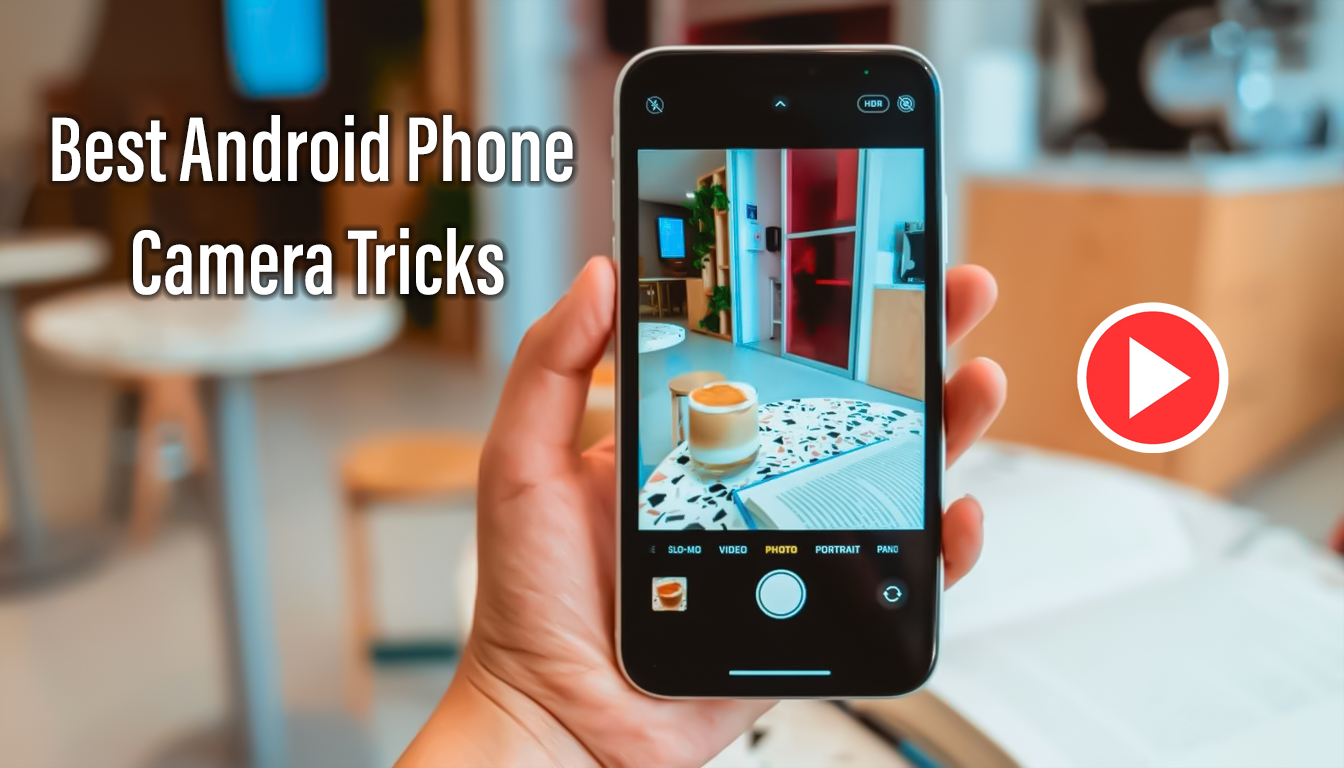
Have you ever captured an amazing photo with your Android phone and wondered how to recreate that same result again? With modern Android smartphones offering powerful camera hardware and smart software features, professional-looking photography is no longer limited to expensive cameras. By learning the right camera tricks and techniques, you can dramatically improve your mobile photography skills using just your phone.
Understanding how your Android camera works—and how to use its hidden features—can help you capture sharper images, better colors, and stunning low-light shots. With a little practice, your phone can become a reliable tool for everyday photography, content creation, and even social media or professional use.
Understanding Your Android Camera’s Hidden Capabilities
Most Android users rely only on auto mode, but modern Android cameras are packed with advanced tools designed to give you more creative control. Learning how to navigate the camera interface is the first step toward better photos.
On most Android devices, the camera app includes multiple modes such as Photo, Video, Portrait, Night, Pro (Manual), and Panorama. Swiping between these modes or opening the settings menu often reveals powerful features like HDR, grid lines, exposure control, and AI scene optimization. Each manufacturer may place these options differently, but the core functions remain similar.
Camera hardware also varies between devices. Flagship phones typically use larger sensors, better lenses, and optical image stabilization, while mid-range phones rely more on software processing. Knowing your phone’s strengths allows you to use it more effectively.
Best Android Phone Camera Tricks for Better Photos
Use HDR Mode the Right Way
HDR (High Dynamic Range) is one of the most useful camera features on Android. It works by combining multiple images with different exposures into one balanced photo. This helps preserve details in bright highlights and dark shadows.
HDR works best for landscapes, outdoor scenes, and photos taken against bright backgrounds. However, it’s not ideal for fast-moving subjects, as motion can cause blur. Learning when to turn HDR on or off makes a big difference in image quality.
Master Portrait Mode for Professional Background Blur
Portrait mode uses depth detection to blur the background while keeping your subject sharp. To get the best results, make sure your subject is well-lit and stands a short distance away from the background. Clean backgrounds and good lighting help portrait mode create a more natural bokeh effect.
Portrait photography is great for people, pets, and close-up shots where you want the subject to stand out.
Improve Low-Light Shots with Night Mode
Night mode allows Android phones to capture brighter, clearer photos in low light by taking multiple exposures and combining them. For the best results, keep your phone as steady as possible. Using a tripod or resting your phone on a stable surface can significantly improve night photos.
Night mode works well for city lights, indoor scenes, and evening photography without using flash.
Advanced Camera Settings That Make a Big Difference
Manual Mode: ISO, Shutter Speed, and White Balance
Pro or Manual mode gives you full control over camera settings. ISO controls light sensitivity, shutter speed determines how long light enters the camera, and white balance adjusts color temperature. By tweaking these settings, you can capture better photos in challenging lighting conditions and add creative effects like motion blur or light trails.
Adjust Focus and Exposure Manually
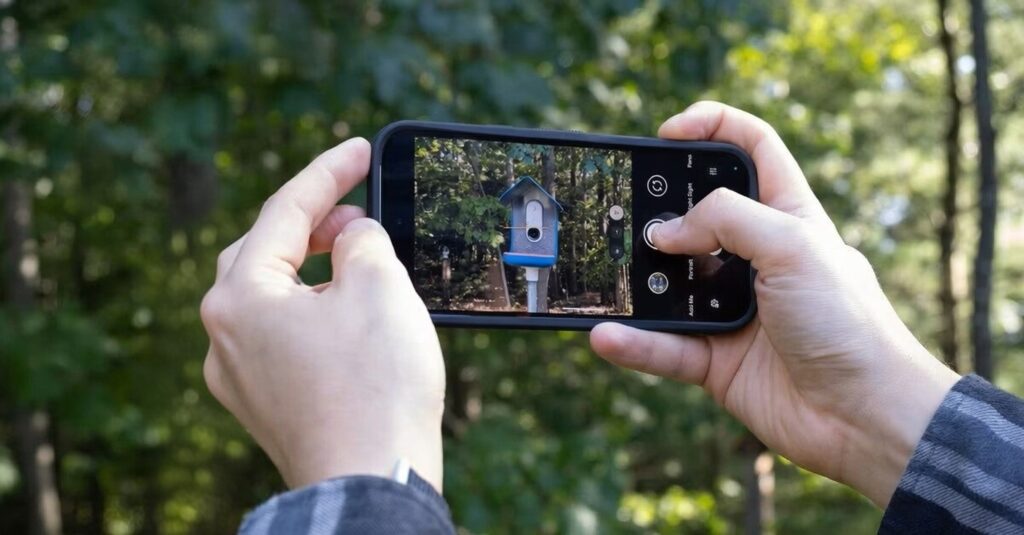
Most Android phones allow you to tap on the screen to lock focus and exposure. Sliding the exposure control up or down helps brighten or darken your image before taking the shot. This simple trick can prevent overexposed skies or dark faces.
Shoot in RAW for Maximum Editing Power
RAW photos store more image data than standard JPEG files, allowing greater flexibility during editing. If your phone supports RAW photography, you can edit highlights, shadows, and colors without losing quality. Apps like Adobe Lightroom and Snapseed work well with RAW images.
Creative Photography Techniques for Android Users
Panorama and Wide-Angle Photography
Panorama mode lets you capture wide landscapes that don’t fit into a single frame. Move your phone slowly and steadily for smooth results. Wide-angle lenses are also perfect for architecture, travel photos, and group shots.
Time-Lapse and Slow Motion
Time-lapse compresses long moments—like sunsets or moving clouds—into short videos, while slow motion highlights fast actions like water splashes or sports moments. Both features are great for creating eye-catching content.
Macro Photography with Your Phone
Many Android phones now include macro modes or lenses. For close-up shots, use good lighting and keep the phone steady. Macro photography is ideal for flowers, textures, insects, and product details.
Motion and Long Exposure Effects
Some Android camera apps allow long exposure or motion effects. These can create artistic blur in moving water, traffic lights, or crowds. Using a tripod is essential for these shots.
Best Third-Party Apps to Enhance Mobile Photography
Your phone’s default camera app is powerful, but third-party apps can take things even further. Camera apps with manual controls allow greater flexibility, while photo editing apps help polish your final image.
Popular editing apps offer tools for exposure correction, color grading, sharpness, and noise reduction. AI-powered apps can also enhance images automatically, recognize objects, and apply creative effects.
Using the right combination of camera and editing apps can help your photos look more professional and visually appealing.
| New |
|---|
| Best Android Hidden Camera |
| Tricks |
Turn Your Android Phone into a Powerful Camera
Mastering Android phone camera tricks doesn’t require expensive equipment—just knowledge, practice, and creativity. By understanding your camera’s features, using the right shooting modes, and experimenting with advanced settings, you can significantly improve your photography skills.
Whether you’re capturing everyday moments, creating social media content, or exploring photography as a hobby, your Android phone has the tools you need. With the right techniques, stunning photos are always within reach.